Quick Answer
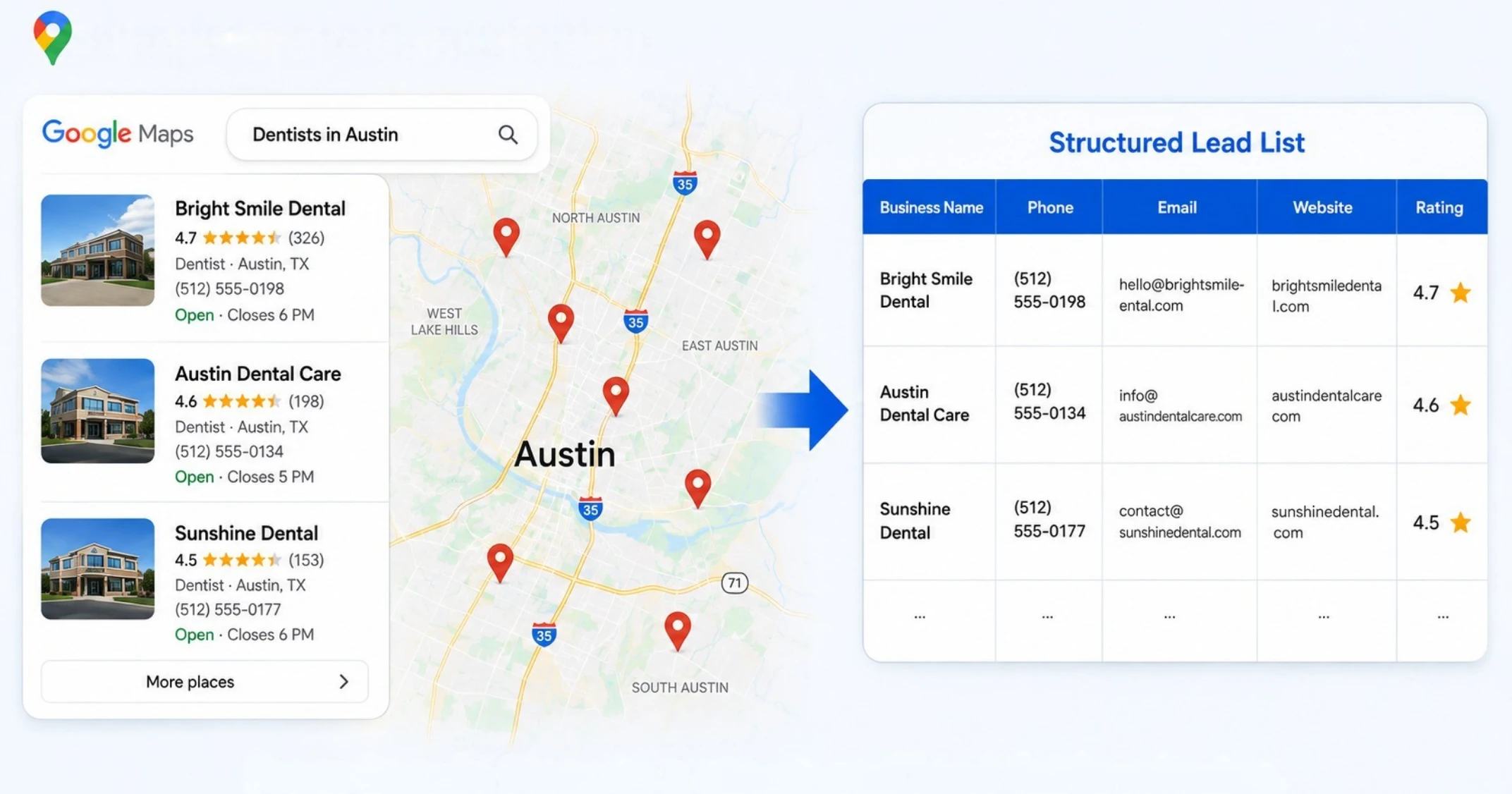
To generate leads from Google Maps, define the business category and location you want to target, collect relevant business and contact information, then filter the results based on your prospecting criteria.
GMPlus helps turn Google Maps business results into structured records that you can review, qualify and export to CSV, XLSX or JSON.
What Is Google Maps Lead Generation?
Google Maps lead generation is the process of finding businesses that match a target market, collecting useful information about those businesses, and filtering the results into a relevant prospect list.
For example, you might search for:
- Dentists in Austin
- Marketing agencies in London
- Hotels in Miami
- Plumbers in Phoenix
- Restaurants in Chicago
Google Maps can surface businesses together with information such as business name, category, phone number, website, address, rating and review count.
However, a business listing is only a business record at this stage. Whether it becomes a useful lead depends on how well it matches your target industry, location, contact requirements and other qualification criteria.
Why Use Google Maps for Local Business Prospecting?
Google Maps is especially useful when your target market can be defined by both business type and location.
A search such as "dentists in Austin" or "plumbers in Phoenix" can surface relevant businesses together with useful public information such as categories, addresses, phone numbers, websites, ratings and reviews.
This makes Google Maps a practical starting point for building location-based business lists before applying your own qualification criteria.
Instead of starting with a broad company database, you can focus your research around specific combinations of:
- Business category
- City or region
- Local market
- Service area
- Business characteristics
This is particularly useful for local prospecting, territory-based research and business list building.
What Data Should You Collect for a Google Maps Lead List?
The most useful fields depend on how you plan to use the data. For lead generation and prospect research, the following information is usually the most relevant.
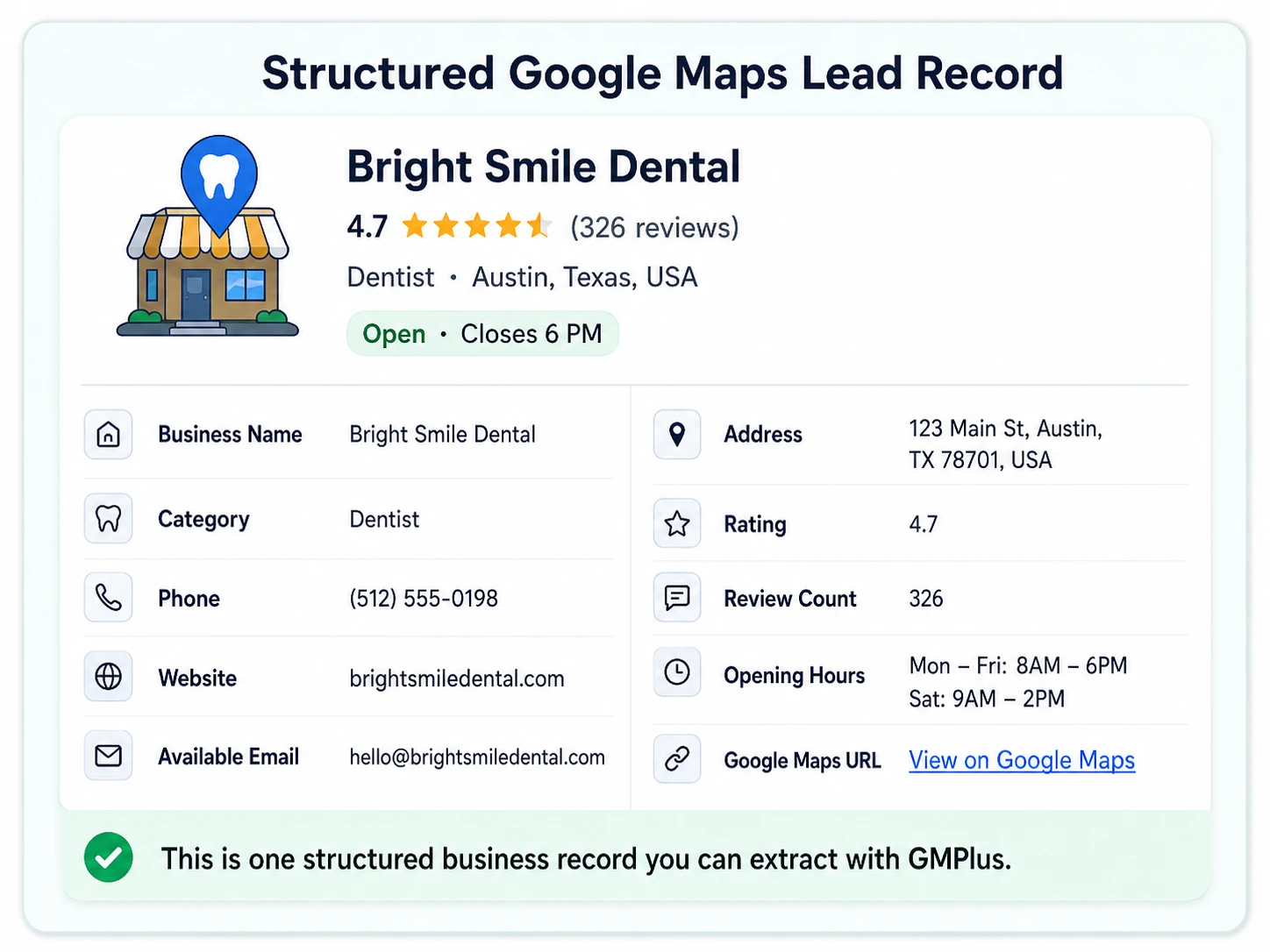
Business Name
The business name identifies each company and provides the foundation for organizing your prospect list.
Category
Business categories help you determine whether a listing matches the industry or market you want to target.
For example, a search for "restaurants" may contain multiple restaurant categories, so category data can help you refine the results further.
Phone Number
A publicly available business phone number provides a direct contact option and can help determine whether a business has an accessible contact channel. See how to extract phone numbers from Google Maps for structured business records.
Website
A business website can help you understand the company's services, positioning and online presence before deciding whether it fits your target criteria.
Available Email
An available business email can provide another contact or research channel.
Google Maps itself does not provide a dedicated email field. When email extraction is selected, GMPlus checks supported publicly available sources for available email information and associates it with the relevant business record when possible.
Learn more about the Google Maps Email Scraper.
Address
Business addresses help you filter records by city, region, neighborhood, territory or other geographic criteria. Learn how to extract Google Maps addresses for location-based research and filtering.
Rating and Review Count
Ratings and review counts provide additional context about a business's activity and presence on Google Maps.
These signals can be useful when comparing businesses, but they should not be treated as automatic indicators of lead quality.
Opening Hours
Opening hours can provide additional operating information and may help confirm whether a listing contains current business details.
Google Maps URL
Keeping the original Google Maps URL makes it easy to return to the source listing when you need to verify or research a business further.
GMPlus supports up to 27 data fields, allowing you to select only the information that is relevant to your workflow.
Google Maps Lead Generation: Step-by-Step Workflow
A useful Google Maps lead generation process starts with clear targeting and ends with a structured, filtered list.
1. Define the Businesses You Want to Find
Start by deciding exactly which businesses are relevant to your goal.
The two most important criteria are usually:
- Business category
- Location
Instead of searching for a broad term such as "businesses," use a specific combination of industry and geography.
For example:
- Real estate agencies in Dallas
- Dental clinics in Seattle
- Coffee shops in Boston
- Digital marketing agencies in Manchester
- Logistics companies in Houston
More focused searches usually produce records that are easier to review and qualify later.
Before starting, it can also help to define additional criteria such as:
- Target city or territory
- Relevant business categories
- Required contact information
- Website availability
- Minimum or maximum review activity
You do not need to apply every criterion at the search stage. The goal is simply to know what a useful result looks like before collecting the data.
2. Search Businesses by Category and Location
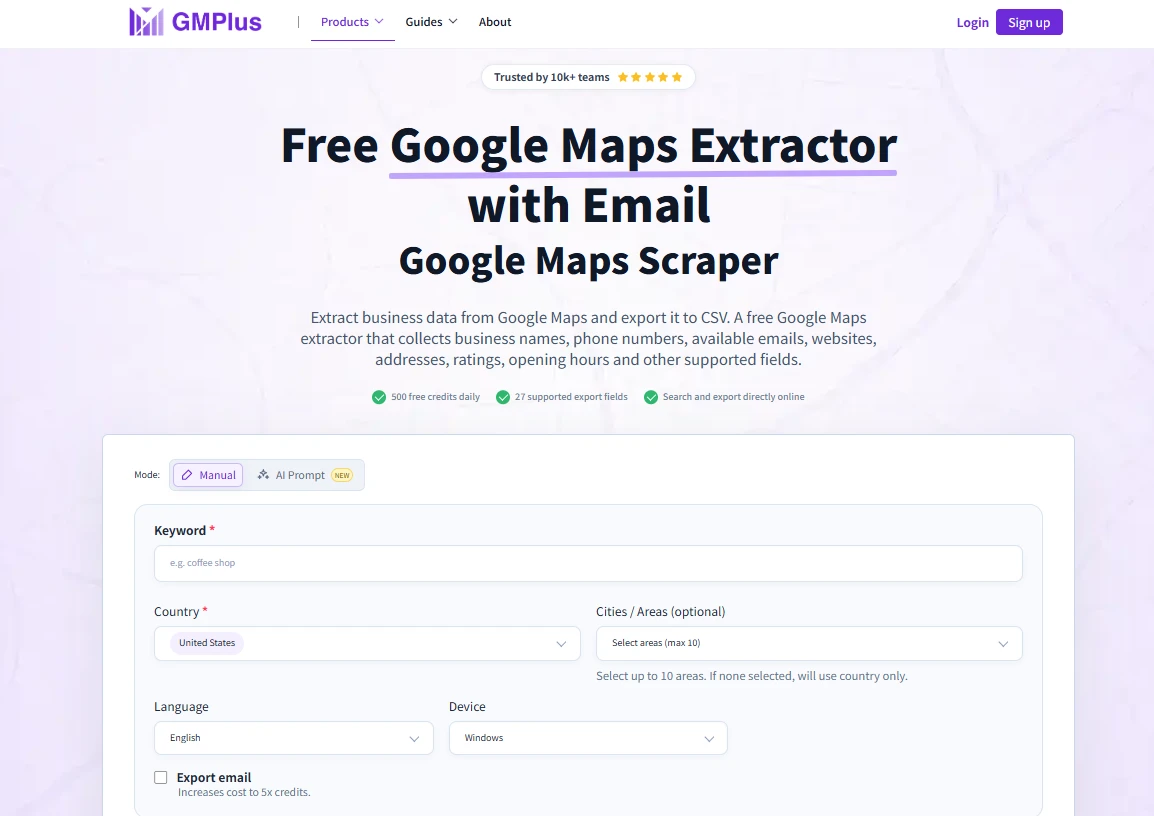
Open the GMPlus Google Maps Extractor and enter the business keyword or category you want to search together with your target location.
For example:
Keyword: Dentist
Location: Austin, Texas
or:
Keyword: Marketing Agency
Location: London
GMPlus works directly online, so you do not need to install a Chrome extension, write code or configure a Google Maps API key.
Try to use searches that closely match your target market instead of collecting a broad set of unrelated businesses and filtering everything afterward.
3. Select the Data You Need
Before starting the extraction, select the fields that will help you evaluate or research the businesses.
For a typical Google Maps lead list, you might choose:
- Business name
- Category
- Phone number
- Available email
- Website
- Address
- Rating
- Review count
- Google Maps URL
Not every project requires every field.
For example, a territory-based sales list may prioritize address and contact information, while a local SEO research project may place more importance on website availability, ratings and review counts.
Selecting only the fields you actually need keeps the exported results easier to review and work with.
4. Extract the Business Results
Once your search and fields are ready, run the extraction.
GMPlus organizes supported business information into structured records, reducing the need to open individual Google Maps listings and manually copy information one business at a time.
Each GMPlus account receives 500 free credits per day.
A standard business record uses 1 credit, while a record with email extraction selected uses 5 credits.
The result is a structured dataset that can be reviewed, filtered or exported for further work.
5. Export Your Google Maps Lead List
Once the extraction is complete, export the results in the format that best fits your workflow.
GMPlus supports:
- CSV
- XLSX
- JSON
CSV and XLSX are useful when you want to review, sort or filter businesses in spreadsheet software.
JSON can be useful when the records need to be used in structured data workflows or other systems.
Exporting the records is not the final step in lead generation. The next step is deciding which businesses are relevant enough to keep in your prospect list.
How to Qualify Google Maps Leads
A large collection of Google Maps businesses is not automatically a useful lead list.
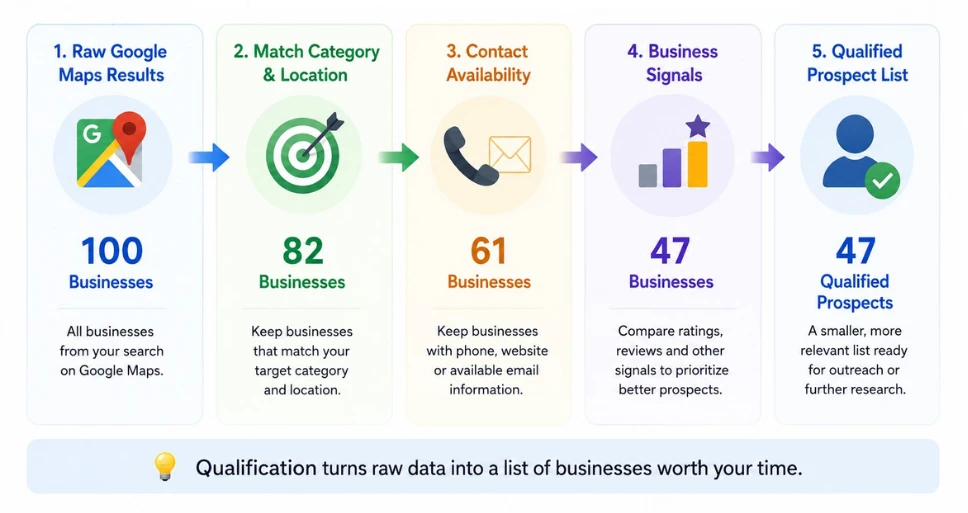
Qualification helps you reduce the raw results to businesses that better match your actual target criteria.
A simple workflow looks like this:
Match the Right Category and Location
Start by confirming that each business matches the industry and geographic area you intended to target.
Some listings may appear in related searches even though they are not a strong match for your actual market.
Review fields such as:
- Business category
- City
- Address
- Service area
Removing clearly irrelevant businesses early makes the rest of the qualification process easier.
Check Contact Availability
Next, determine which contact or research channels are available for each business.
Depending on your workflow, useful fields may include:
- Phone number
- Website
- Available email
The absence of one field does not automatically make a business a poor lead.
For example, a business without an available email may still have a phone number or website that makes further research possible.
Contact availability should therefore be treated as a filtering signal rather than a universal qualification rule.
Compare Business Activity Signals
Ratings, review counts and operating information can provide additional context when comparing businesses.
For example, review count can help distinguish between businesses with high and low levels of Google Maps activity.
These signals can support your research, but they should not be used as automatic measures of business quality or sales potential.
Review Website Presence
A business website can provide useful information that is not available directly in a Maps listing.
You can use it to understand:
- Services offered
- Business positioning
- Contact options
- Online presence
Depending on your use case, website availability may itself become part of your qualification criteria.
For example, a web design agency may be interested in businesses with limited or outdated websites, while another workflow may prioritize businesses that already have an active website.
Remove Irrelevant or Duplicate Records
Before using the final list, remove duplicate businesses, irrelevant listings and records that clearly do not meet your targeting criteria.
The goal is to move from:
Raw business records
to:
A smaller and more relevant prospect list
This qualification step is what turns Google Maps data extraction into a practical lead generation workflow.
Google Maps Lead Generation Examples
The same Google Maps data can support different prospecting workflows depending on what you are trying to identify.
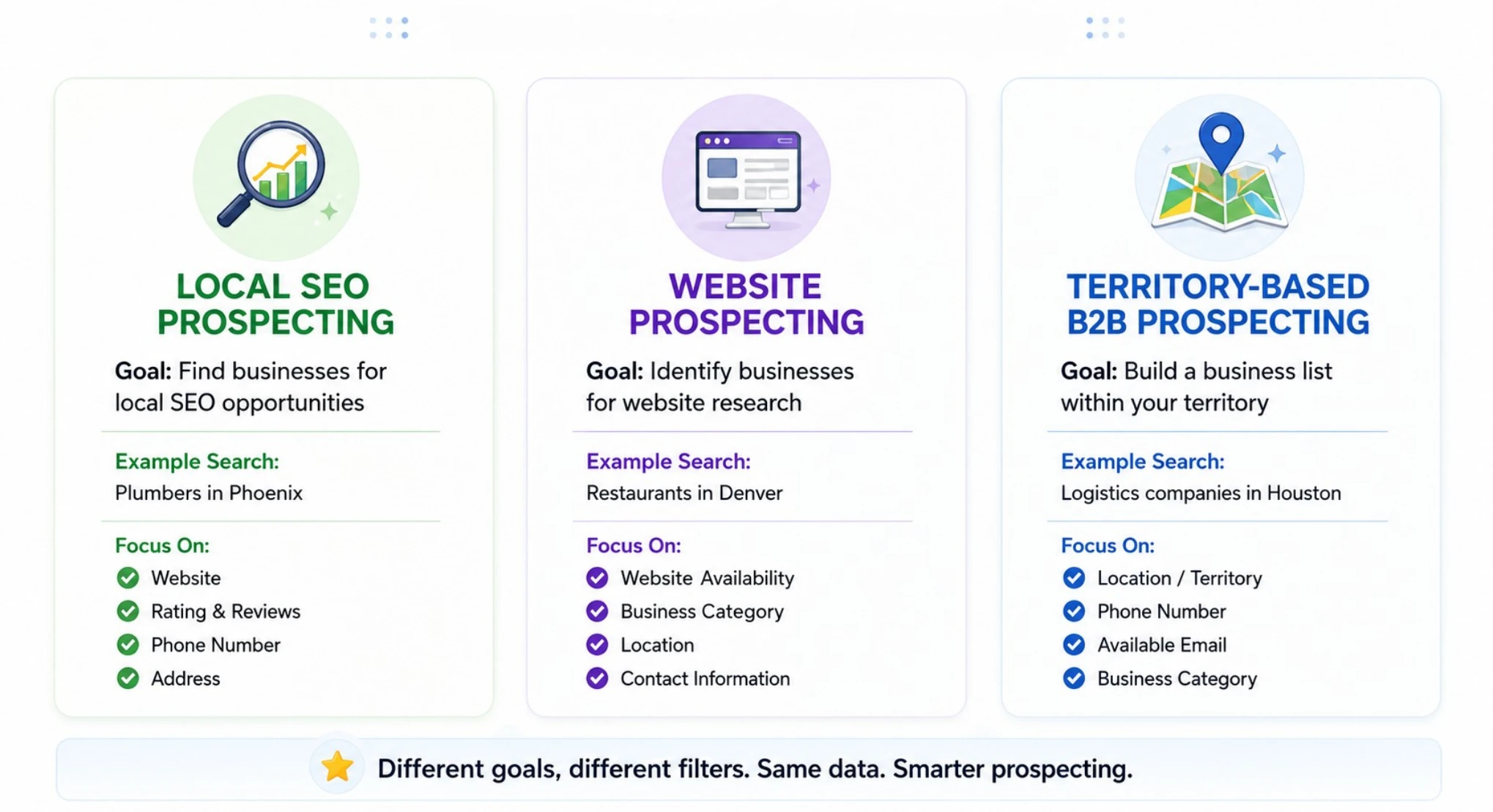
Local SEO Prospecting
Goal: Find businesses within a local market for further SEO research.
Example search:
Plumbers in Phoenix
Useful fields:
- Business name
- Category
- Website
- Rating
- Review count
- Phone number
- Address
Qualification approach:
Filter the results by location and business category, then compare website availability and Google Maps activity signals.
Result:
A focused list of local businesses that can be reviewed individually for potential SEO opportunities.
Website Prospecting
Goal: Identify businesses that may be relevant for website-related research.
Example search:
Restaurants in Denver
Useful fields:
- Business name
- Website
- Category
- Phone number
- Address
- Google Maps URL
Qualification approach:
Keep businesses that match the target location and category, then review website availability and the current online presence of each business.
Result:
A smaller list of businesses suitable for further website research instead of a broad list of every restaurant in the area.
Territory-Based B2B Prospecting
Goal: Build a structured business list within a defined sales or research territory.
Example search:
Logistics companies in Houston
Useful fields:
- Business name
- Category
- Address
- Phone number
- Available email
- Website
Qualification approach:
Confirm that each company falls within the target territory and business category, then organize records according to available contact information.
Result:
A structured territory-based prospect list that can be filtered and researched further.
Manual Google Maps Prospecting vs Using a Lead Extractor
You can build a business list manually by opening Google Maps results one by one and copying information into a spreadsheet.
This may be practical for a very small number of businesses, but the process becomes repetitive as the number of records increases.
| Task | Manual Google Maps Research | GMPlus |
|---|---|---|
| Find businesses by category and location | Yes | Yes |
| Copy business records individually | Required | Not required |
| Collect multiple structured fields | Manual | Supported |
| Find available emails from public sources | Requires separate research outside Google Maps | Supported through email extraction where available |
| Organize data into rows and columns | Manual | Structured automatically |
| Export results | Build your own spreadsheet | CSV, XLSX or JSON |
| Chrome extension required | No | No |
| Google Maps API key required | No | No |
A Google Maps lead extractor is most useful when you need to organize multiple business records consistently instead of repeatedly copying information from individual listings.
The extraction tool helps with data collection and organization. Qualification still depends on the criteria that matter to your own prospecting workflow.
Important Limitations of Google Maps Lead Generation
Google Maps can be useful for discovering local and location-based businesses, but there are several limitations to keep in mind.
Not Every Business Has Every Data Field
The information available varies from one business to another.
Some listings may include a phone number, website, detailed address and opening hours, while others may contain only basic business information.
You should therefore expect some fields to be unavailable for certain records.
Google Maps Does Not Provide a Dedicated Email Field
Business emails are not a standard Google Maps listing field.
When email extraction is selected, GMPlus checks supported publicly available sources for available email information and associates it with the relevant business record when possible.
An email will therefore not be available for every business.
Business Information Can Change
Phone numbers, websites, opening hours, addresses and other business information may change over time.
If a record is important to your workflow, verify critical information before relying on it.
Use Business Data Responsibly
Use publicly available business information in accordance with applicable laws, platform requirements and the policies that apply to your own research or outreach activities.
Data extraction can help organize business information, but how that information is subsequently used remains an important part of a responsible workflow.
Frequently Asked Questions About Google Maps Lead Generation
Can you generate leads from Google Maps?
Yes. Google Maps can be used to discover businesses by category and location and collect useful information such as business names, phone numbers, websites, addresses, ratings and other available business data. You can then filter those records according to your target market and qualification criteria to create a more relevant prospect list.
How do I extract leads from Google Maps?
Start by defining the business category and location you want to target. Search for relevant businesses, select the data fields you need, extract the records and export the results. After extraction, review the businesses and remove records that do not match your target criteria.
What is a Google Maps lead extractor?
A Google Maps lead extractor is a tool that collects supported information from Google Maps business results and organizes it into structured records. It can reduce the manual work involved in opening individual listings and copying business information into a spreadsheet one record at a time.
What information can I collect for a Google Maps lead list?
Useful fields can include business name, category, phone number, website, available email, address, rating, review count, opening hours and Google Maps URL. The exact information available varies between business records.
Can I get email addresses from Google Maps leads?
Google Maps itself does not provide a dedicated business email field. GMPlus can check supported publicly available sources for available emails and associate them with business records when possible. Because email availability varies by business, an email will not be available for every result.
Can I generate Google Maps leads for free?
Yes. You can research businesses manually on Google Maps, and GMPlus also provides 500 free credits per day for structured business data extraction. A standard business record uses 1 credit, while a record with email extraction selected uses 5 credits.
Do I need a Chrome extension to extract Google Maps leads with GMPlus?
No. GMPlus works directly online and does not require a Chrome extension, Google Maps API key or coding for its main Google Maps extraction workflow.
Can I export Google Maps leads to Excel?
Yes. GMPlus supports XLSX exports for Excel as well as CSV and JSON formats.